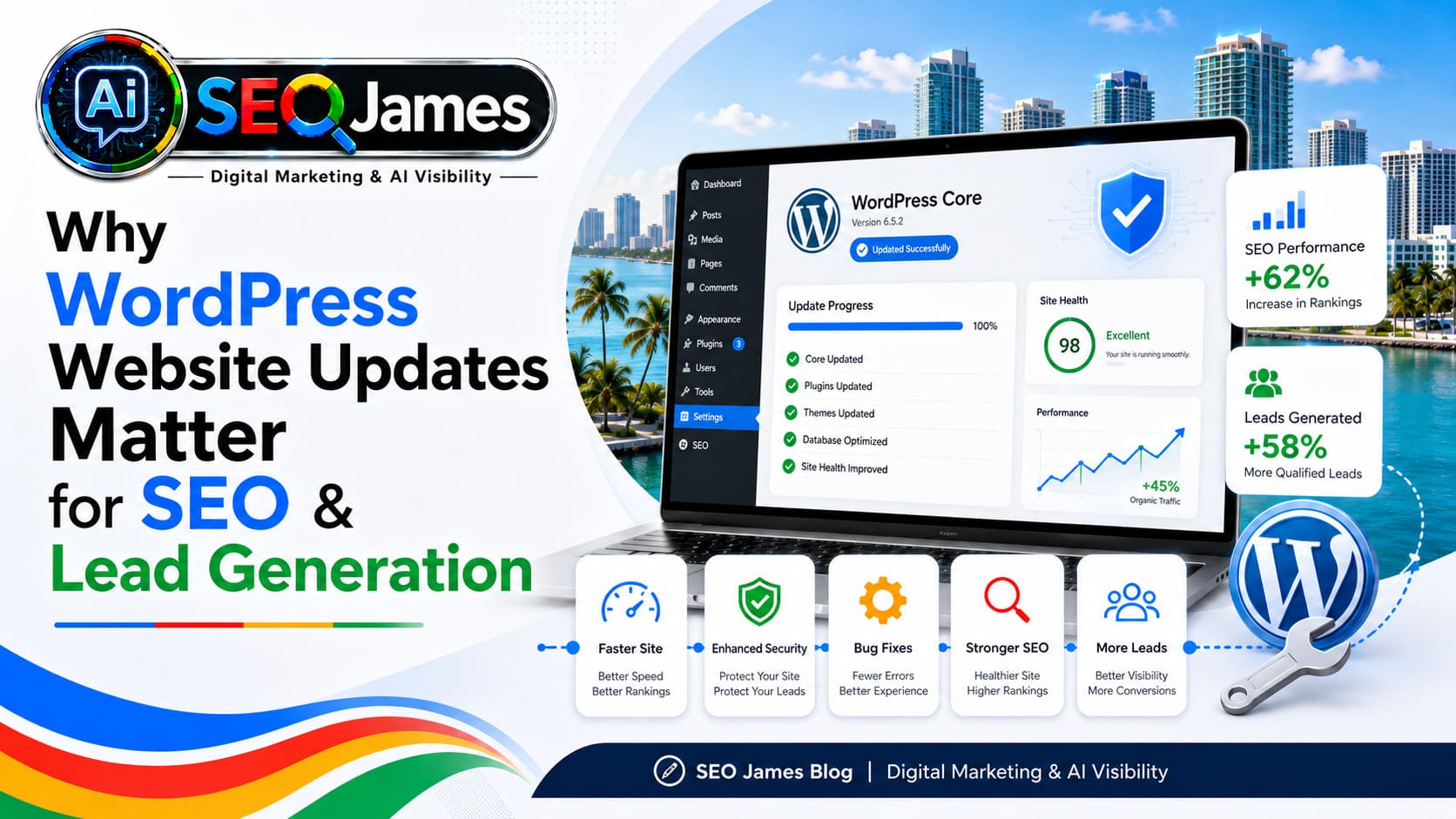

If your WordPress website brings in calls, bookings, or quote requests, an update is only finished when those things still work. Start by checking which version your site is running, then plan around the pages and tools your customers actually use. A short test on a phone can catch a broken inquiry form before a customer does.
What changed in WordPress this November
WordPress 7.1.5, released November 18, 2026, is the latest stable release as of November 21. It addresses multiple security issues, and the WordPress team recommends updating promptly. Check your dashboard or managed hosting portal to see whether your site already received it through automatic updates. Read the WordPress 7.1.5 release announcement.
WordPress 7.2 is currently in release-candidate testing. If you want to see how it works with your theme and plugins, use a staging site. Keep your public website on the stable release while 7.2 is being tested. Read the WordPress 7.2 testing announcement.
Check core, plugins, and themes
WordPress core, plugins, and themes receive updates separately. A current core version can still sit beside an outdated booking plugin, page builder, or premium theme. Open Dashboard → Updates and check your hosting portal if your provider manages core updates. For paid plugins and themes, confirm that the site can receive vendor updates and that someone on your team controls the license.
Prioritize security fixes and pay particular attention to the software customers depend on, such as a form builder or payment extension. If an update fails, record the component, its version, and the error, then check with your host or vendor. Before removing a plugin you think you no longer need, check whether it still powers a form, redirect, or tracking integration. See the WordPress plugin management guide.
Back up the files and database
Make a fresh backup before you start. It should include both site files and the database, which stores content, settings, and, on many ecommerce sites, orders. Confirm where the backup lives, who can restore it, and when it was taken. If you accept orders or bookings, plan how you would preserve transactions that arrive after the backup if you need to roll back. Read the WordPress backup guide.
Use staging for changes likely to affect several parts of the site, such as a major theme or page-builder upgrade. Test the parts that depend on that software before applying the change to production. If a security patch is urgent, keep the test window short and agree on a recovery plan with your host. WP Engine documents how its portal creates restore checkpoints around core updates. See WP Engine’s core update guide.
Test what customers use after the update
Open the public site in a private window on your phone. Start from the homepage and from a service or landing page you advertise. Test the same steps a customer would take.
- Navigation and calls. Open the mobile menu, follow the main buttons, and tap the phone number to verify the intended destination.
- Forms and notifications. Send a clearly labeled test inquiry. Verify the confirmation and check that the message reaches the right inbox or customer system.
- Bookings and payments. Walk through the booking or checkout flow in test mode where available, then confirm that the expected notification arrives.
- Lead reporting. If you track conversions, confirm that a completed submission or test call appears in the system you use for reporting.
If a test fails, write down the page, the device, and the change you just made. That gives the person investigating a way to reproduce the problem. If the update stops customers from contacting you, use the recovery plan and verify the affected flow again once it is restored.
Give updates a regular owner
Decide who checks update notices, who can restore the website, and who verifies new inquiries after maintenance. Automatic updates can suit some components when backups and alerts are in place. Schedule a supervised update when a change could affect checkout, bookings, or a page builder across the whole site. Keep a short record of what changed, when it changed, and what you tested. See WordPress’s guide to plugin and theme auto-updates.
Treat suspicious redirects as a separate incident
If a normal service page suddenly shows unrelated content or sends customers somewhere unexpected, save the affected URL and the time you saw it. Contact your hosting provider and ask them to investigate the site files and database. Apply the relevant security updates as part of the response, then verify the affected page and the customer inquiry flow after cleanup. See WordPress’s guidance for a suspected compromise.
Need help with WordPress maintenance?
SEO James helps Florida businesses manage WordPress updates, coordinate with hosting providers, and check that the site still delivers customer inquiries after a change. Explore WordPress website maintenance or request a free website review.